
Floor Plan Inventory
Most campus buildings have floor plans available in MetaBIM, with additional buildings added regularly. New buildings are typically uploaded to the system prior to occupancy.
Each building page includes icons linking to the most current floor plan for each level. Floor plans are integrated with the room database, allowing users to select a room and open its room record. The room record displays information drawn from multiple campus data systems.
Facilities Management continuously updates floor plans to reflect ongoing renovations and building modifications in collaboration with Capital Projects and the Furniture Program. If a floor plan does not match the current layout of a building, please contact Facilities Management to coordinate an update.
How to View Floor Plans
Navigate to the building page. If the building has multiple floors, an icon will appear for each floor.
Select a floor icon to open the plan in the Floor Plan Viewer.
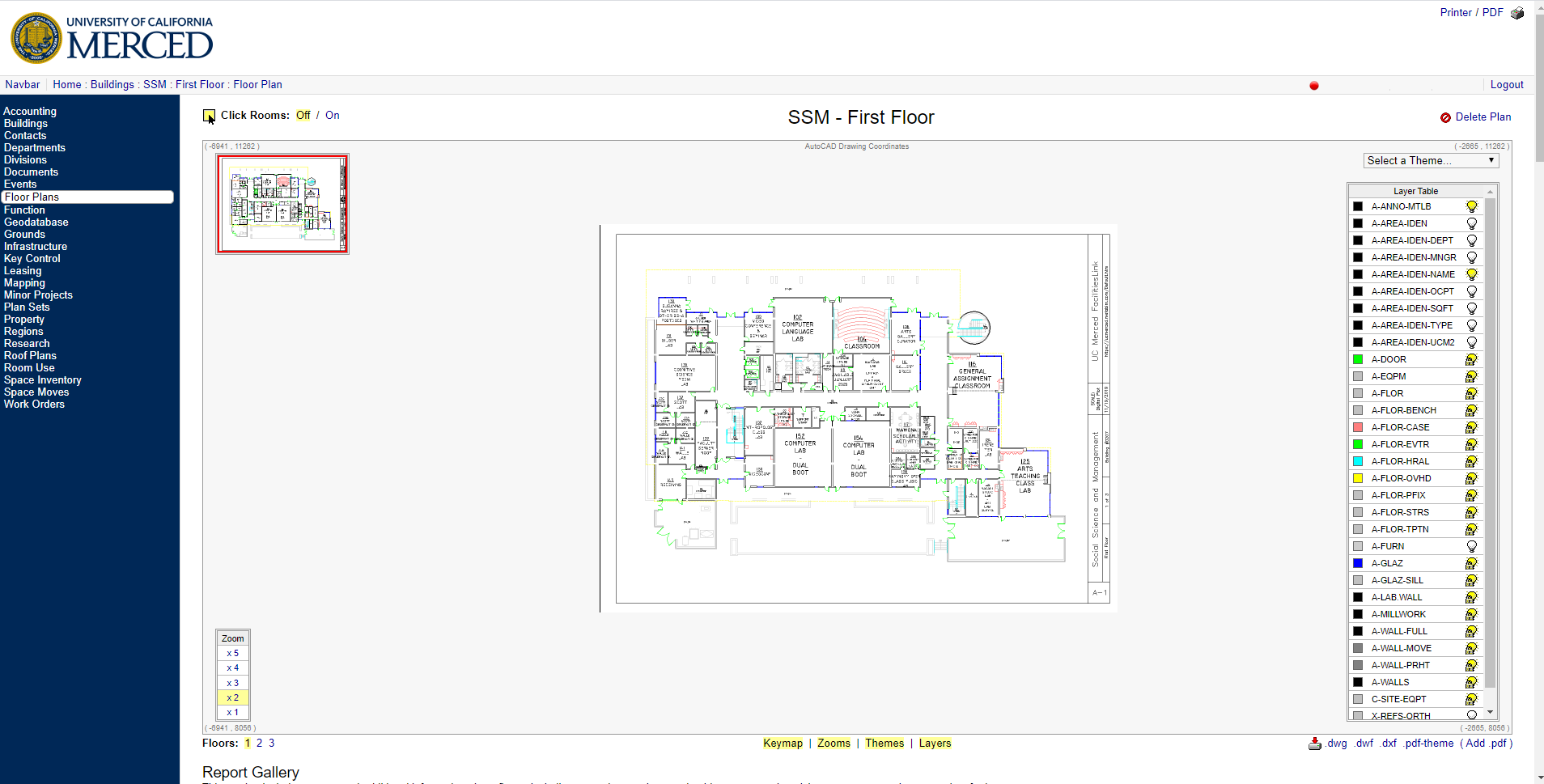
Options in the Floor Plan Viewer
Click Rooms: Off / On
Located in the upper left corner above the viewer window. When set to On, room boundaries are outlined in yellow. Clicking a highlighted room opens that room’s data page. When set to Off, the outlines disappear and the floor plan can be repositioned using the mouse.
Use Zoom Tool
Located in the lower left corner of the viewer. The zoom tool allows users to enlarge or reduce the floor plan. Five zoom levels are available. You may also use your mouse scroll wheel to zoom in and out.
Display a Theme on the Floor Plan
The Themes dropdown is located in the upper right corner of the viewer. The default selection is “Select a Theme.” Themes allow users to display specific space categories such as department, room use, NAMs, and others. A printable legend appears below the viewer, and the themed floor plan can be printed as a PDF.
Layers Table
Located to the right of the floor plan. This feature is not required for most users and can be hidden by selecting “Layers” below the viewer.
Increase Viewing Space
Additional viewing space can be created by turning off items displayed below the viewer. For example, select “Keymap” to hide the overview map in the upper left corner. Select it again to restore the display. This may need to be reset when changing zoom levels.


